
Set up Build-a-Box
By the end you'll have a working build-your-own-bundle on your store: a pool of products, a box size, and a page where customers assemble their own six-pack, gift box or sampler. Every item they pick becomes a real line item with its own price and its own inventory.
The working core is five steps. Everything else in the box editor is polish you can layer on afterwards, and there's a map of it further down.
Build the box
- Open Optionfier from your Shopify admin and click New Build-a-Box.
- Fill in Name. It becomes the title of the box product Optionfier creates for you, so customers see it in the cart, at checkout and on their orders.
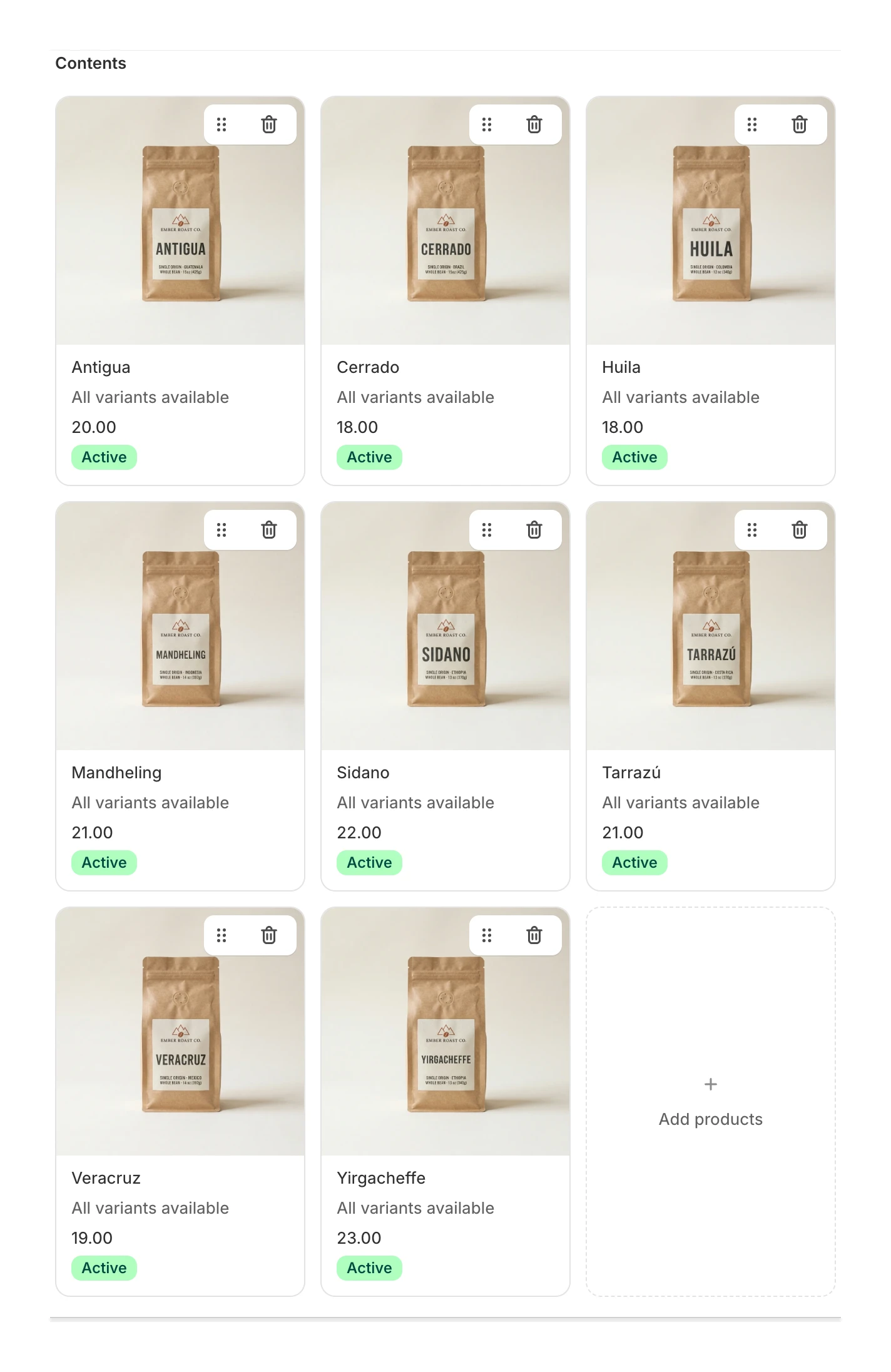
- In the Contents card, click Add products and pick everything customers can choose from. Drag the cards to set the order they appear in on your storefront. Put your best sellers first, since that's what an undecided customer reaches for.
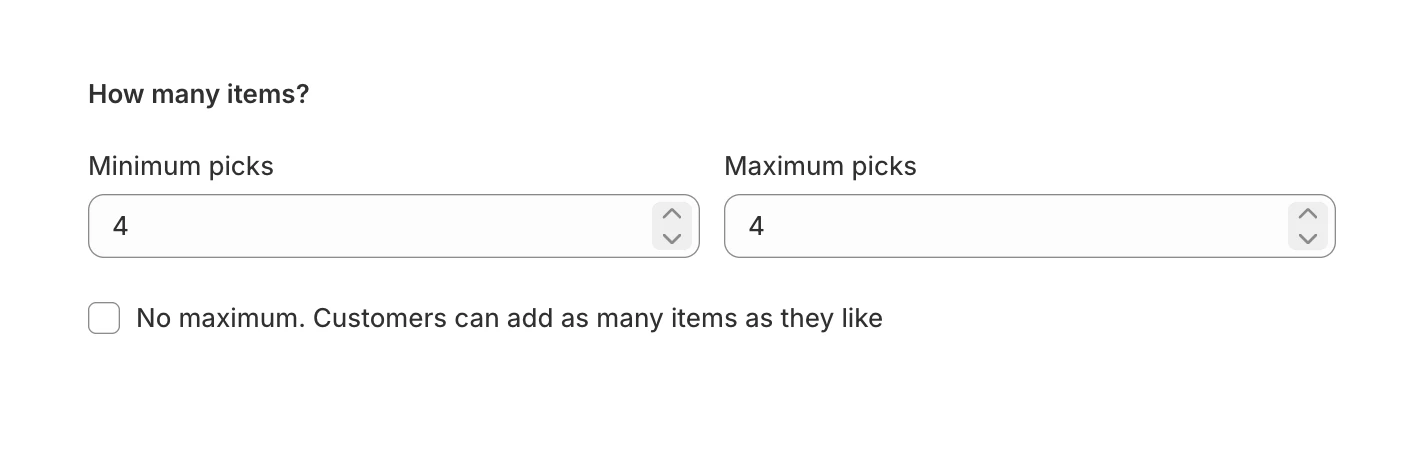
- In How many items?, set Minimum picks. Then decide about the ceiling: No maximum is checked by default and lets customers keep adding, so uncheck it and set Maximum picks if the box is a physical container with a real limit. A six-pack wants minimum 6, maximum 6. A "fill your own hamper" is happy with a minimum and no maximum.
- Toggle Published in the Status card and save.
The first save creates the box product in Shopify, the product customers add to the cart. If the editor shows a banner asking for a publishing permission, grant it so the product goes on your Online Store. To use a product you already have instead, click Select existing in the Box product card before you save.
That's a working box. Its own page is live immediately, no theme editing required.
The optional half
Now the polish. None of it is required, and it's all reachable from the same editor:
- Box rules cap how many of each item one box can hold. Set a limit of 1 and the quantity stepper disappears from those cards entirely. There's an All other items catch-all too, so you can set one default cap that covers everything you haven't written a rule for, including products you add later.
- Starter packs are curated selections customers apply in one tap and then tweak. They're a strong conversion lever, since an empty grid asks the customer to make every decision and a finished box only asks them to edit it.
- Sections group products under headers customers see while building ("Reds", "Snacks"). They're presentational only, and whether they render is a layout decision. The card warns you when the current layout won't show them.
- Add-ons are extras offered alongside the box, like a greeting card or gift wrap. They don't count against the pick limits. Each add-on can carry its own price override, or be marked as a free gift once the customer's box passes a threshold you set.
- Options collect a choice, a yes/no answer or free text on top of the products. The setting that matters is Where to ask: Whole box, Every item, or Specific products.
- Buy more, save more rewards bigger boxes with tiered discounts. Once you turn it on and save, Optionfier generates a discount code, or an automatic checkout discount, your choice: the code and a Copy button show right on the card.
- Box settings holds two unrelated things. Show low-stock badges flags box products running low (with your own Low-stock threshold), and After adding the box to cart picks what happens once the customer adds their box: Stay on the page (theme default), Go to the cart page, or Go straight to checkout.
- Storefront layout is the launchpad for the composer, where you pick a template and customize how the builder looks. It's three rows, Box page, Product pages and Other pages, and each one opens the composer on that surface. Layouts are per surface, so the box page can run a dense grid while the product-page block stays compact.
- Advanced settings takes custom CSS (up to 10,000 characters) if you need to go past the built-in controls.
Subscriptions for recurring boxes are coming soon; the card in the editor shows the status.
What the customer sees
Every published box with a box product gets a standalone page on your store, wrapped in your theme's header and footer. The address is your store domain, then /apps/optionfier/box/, then the box's handle. A box called "Build Your Own Coffee Box" lands at https://your-store.myshopify.com/apps/optionfier/box/build-your-own-coffee-box.
You set that last part yourself in the URL handle field, and a box that has no handle falls back to its internal id instead. To get there: open the Storefront layout card, click the Box page row, and the composer opens. The URL handle field lives at the bottom of the left panel, with Open page and Copy link right under it. Copy the link and put it in a menu, an email or a button. You can also put the box on your product pages or anywhere else with the Optionfier: BYOB theme block, covered in the theme setup guide.
On that page the customer sees your product pool, a running count of how many picks they've made against the box size, and an add-to-cart button for the finished box. They can add multiples of the same item, and three of the same IPA counts as three picks. Sold-out products are badged and can't be picked.
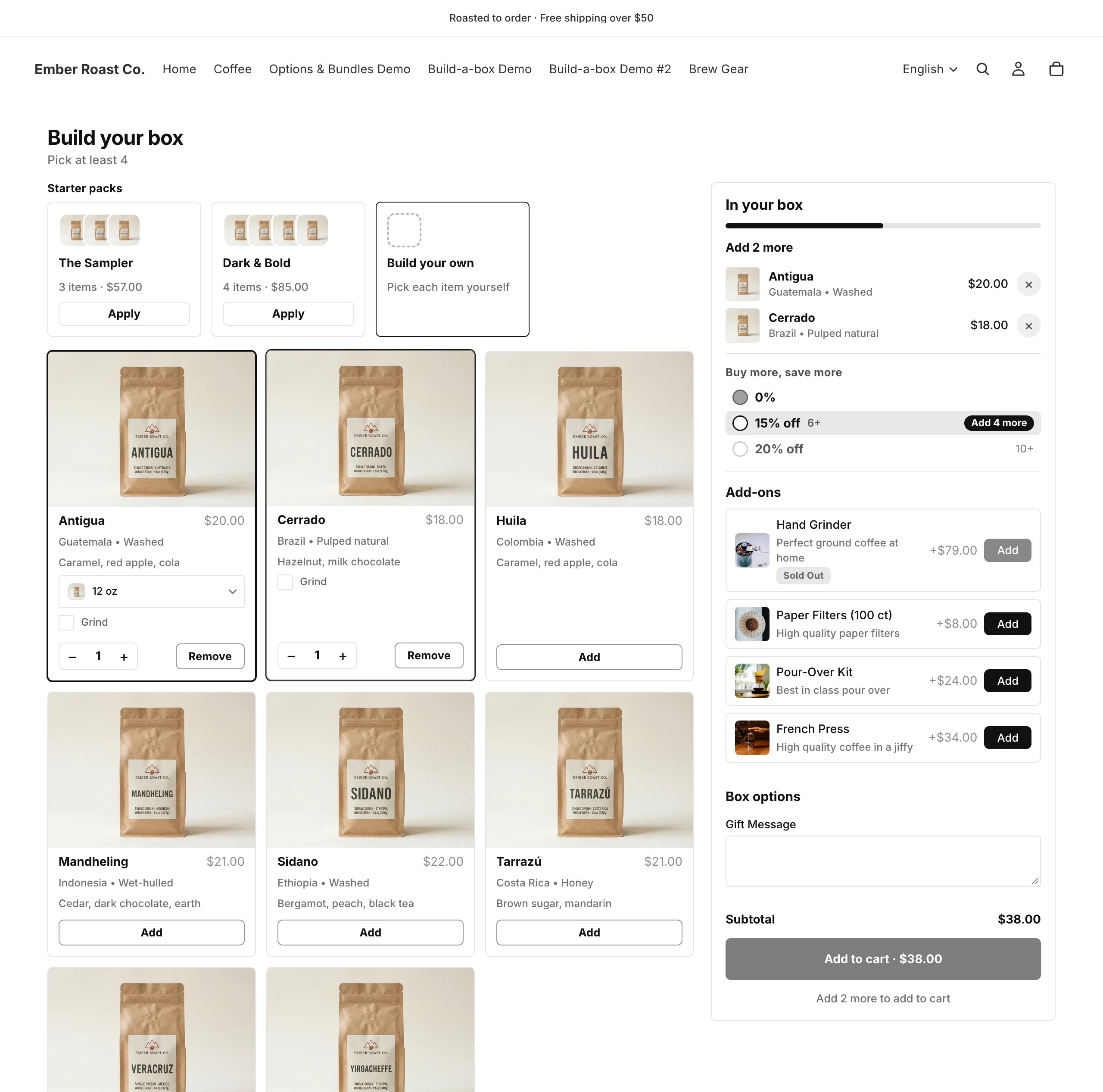
When the finished box hits the cart, Optionfier expands it into one component line per picked item, each with its own price, exactly like a native Shopify bundle. Shopify decrements each component's inventory at checkout. Put three IPAs in a six-pack and your IPA stock drops by three. Refunds and restocks work the standard Shopify way, because every component is a real line item.
The box product is the line that groups those components, but by default it's display only. The customer pays for what's inside the box, not for the box itself. If the container genuinely costs money (a nice wooden crate, say), turn on Charge for the box product in the Box pricing card and the box product joins the bundle as a paid line. Its price is set in Shopify, so open it with Edit product on the Box product card.
Go deeper
- Build a Box in the knowledge base, the full reference
- Box Rules, Starter Packs, Sections and Add-ons
- Box Options, including pricing them and linking them to an add-on
- Buy More, Save More, automatic discount vs built into the price
- Storefront Layout and Where the Box Appears
- The Box in Cart and Checkout
- My box page says "not found"